All coaches (both Free and Pro team accounts) can add, edit, and remove swimmers from their team roster in Swimcloud. Teams with a Swimcloud Pro subscription also have access to enhanced roster management tools, including custom roster tags, video storage, race review features, and .csv export options.
- Adding swimmers to your roster
- Removing swimmers from your roster
- Editing individual swimmers
- Preventing duplicates
- Adding roster tags
 Adding swimmers to your roster
To add a swimmer to your roster:
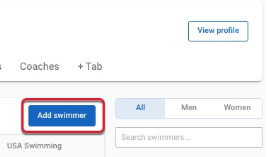
Click the Add Swimmer button from your roster
Select Add Swimmer Manually
-
Search for the swimmer's name
If you find the correct swimmer, select them.
If their profile has not been claimed, they will be added immediately.
If their profile has been claimed, an invitation will be emailed to the swimmer for approval.
If you do not find a match, create a new swimmer profile.
Adding a swimmer’s graduating class or date of birth
High School coaches are encourage to include their swimmer's graduating class:
- Click on Manage / Roster
Scroll through your roster, or use the search features on the right side of the roster to select a swimmer
- Click on the "Add" button to enter the correct information for this swimmer
Tip: Including a swimmer’s class year helps organize your roster and ensures accurate eligibility reporting in meets or recruiting lists.
 Removing Swimmers From Your Roster
To remove a swimmer from your active roster:
Click the three dots (
) next to their name.
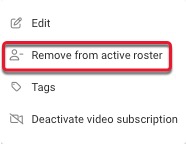
Select Remove from Active Roster.
If a swimmer has results recorded during the season, they will still appear on your public team page, but won’t be eligible for new meet entries.
Editing individual swimmers
Click the three dots () on the right-hand side of any swimmer’s name to:
-
Select "Edit" to access additional profile information
- First Name
- Middle Initial
- Last Name
- Nickname
- USA Swimming ID
Note: If a swimmer has claimed their Swimcloud profile, certain fields will not be editable by the coach.
Preventing Duplicates
To reduce the risk of creating duplicate swimmers:
Double-check the swimmer’s first name, middle initial, and last name.
Always include the swimmer’s date of birth when possible.
Confirm the swimmer’s graduating class and gender before creating a new record.
If duplicates exist, select both swimmers from your roster and click Merge.
Adding Roster Tags
Roster tags are a Swimcloud Pro feature that help organize your team into groups such as training squads, JV/Varsity, or site locations.
To add roster tags:
Select one or more swimmers.
Click the Tag icon at the top of the roster.
Choose an existing tag or create a new one.
To remove a tag, click the Tag icon again and deselect it.
Tags can also be used for targeted communications and to simplify meet entries.